
- News · Product
- Estimated reading time:2 min read
Introducing the Stoify MCP Server
- By Stoify
Connect an MCP-compatible AI client to Stoify and work with site-scoped tools for catalog, storefront builder, settings, media, and SEO tasks.
Share this page
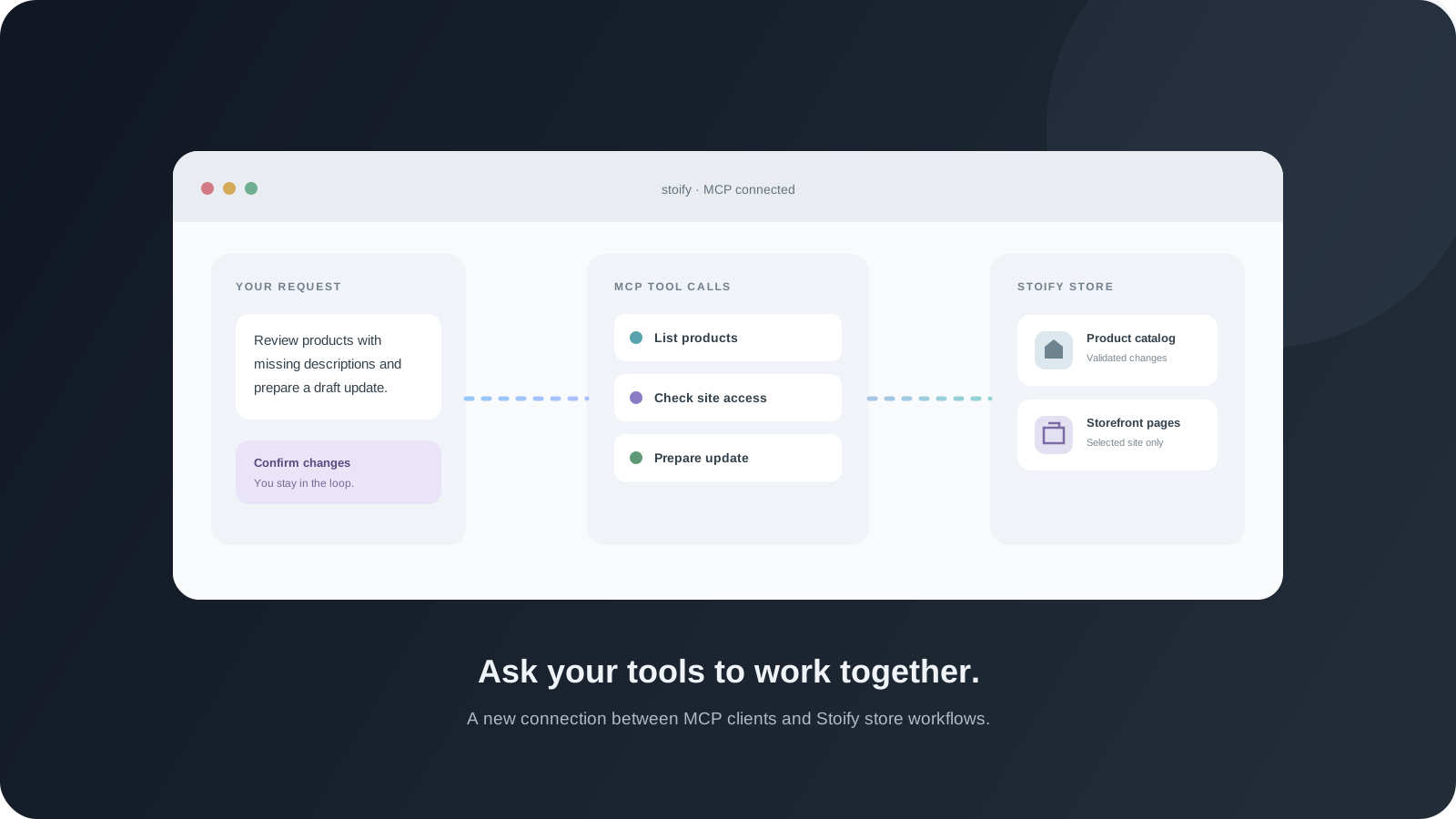
Store work often starts with a question and ends with a series of small dashboard tasks: find a product, check a collection, update a page, review a setting, then verify the result. A connected assistant can make that work easier to navigate when it can use the same store data and permissions as the team.
Today we are introducing the Stoify MCP server. It connects MCP-compatible clients to a set of tools for reading and managing the parts of a Stoify site that merchants and operators work with every day.
What you can do with the first tool set
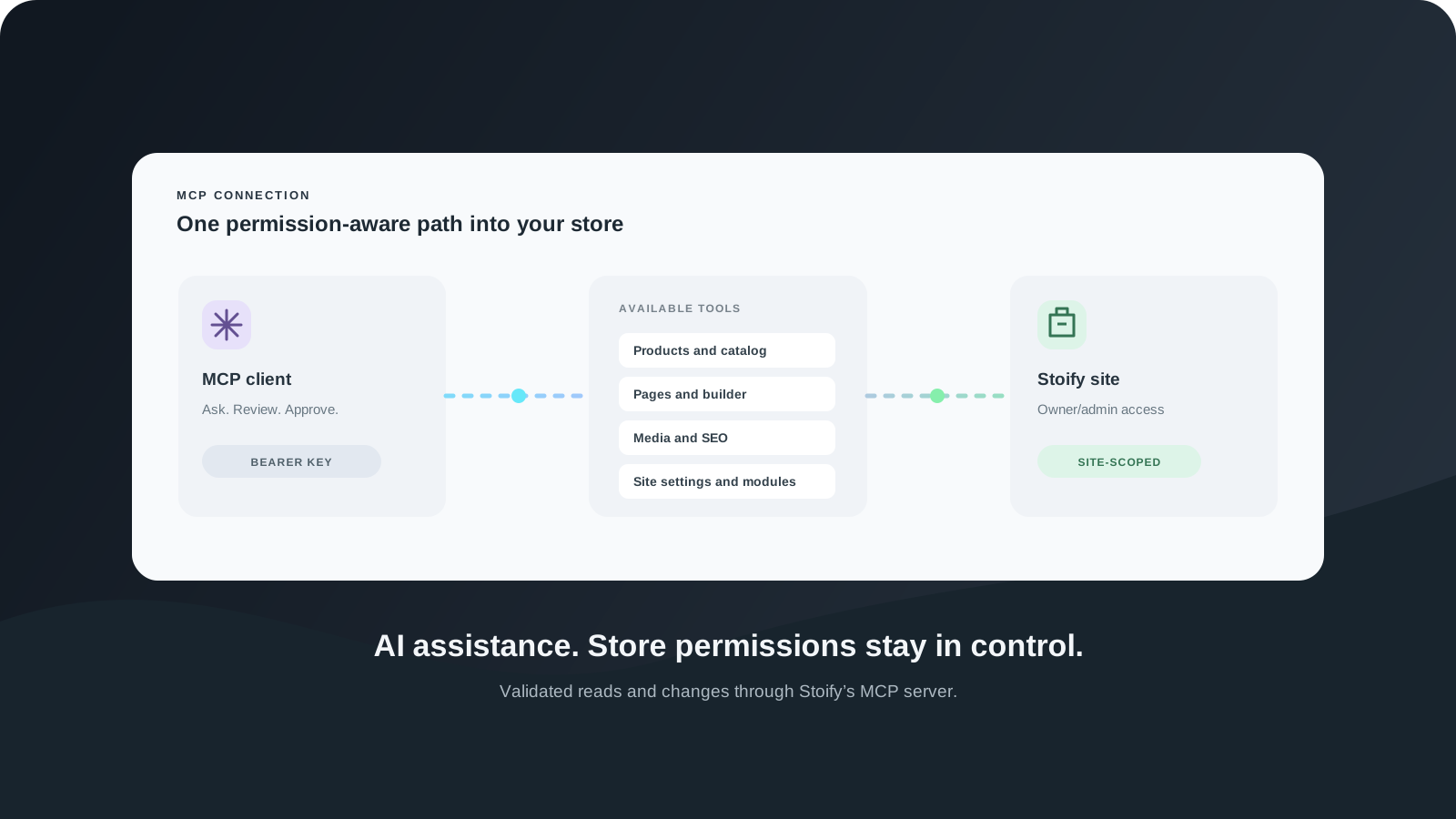
The server can list the sites available to an account, inspect storefront configuration, and work with supported records such as products, categories, collections, brands, and custom pages. Builder tools can read and update home page, navigation, footer, theme, and template configuration. Other tools cover site settings, modules, media, and SEO inventory and audits.
That makes it useful for tasks such as:
- Finding products that need a catalog update.
- Preparing a draft storefront page from a clear brief.
- Checking which modules are enabled for a site.
- Reviewing metadata and queuing an SEO page scan.
- Importing media into supported product or builder workflows.
The available tools are listed with the server so a client can choose the operations it needs. Stoify’s MCP catalogue describes Stoify site modules; it does not claim to enumerate plugins installed in a separate MCP client.
Keep store permissions in the loop
The server uses an account-level MCP key, then checks access to the selected site before running site tools. Only account owners and admins can manage an MCP connection, and site operations require owner or admin access to that site. The API Endpoints module must also be enabled for each site using MCP.
Reads are marked read-only. Writes and destructive operations declare their effects and pass through validated, site-scoped operations. Some settings changes require the latest updatedAt value, which lets the client notice a concurrent dashboard edit instead of overwriting it silently.
The key is shown once when generated. Keep it in the MCP client’s local configuration, and revoke or regenerate it from the dashboard when needed. If the API Endpoints module is disabled on a site, that site’s MCP access stops too.
Connect your client
Open Dashboard → Settings → MCP and generate a key. The page provides the endpoint, https://stoify.app/api/mcp, and a copyable setup prompt for configuring an MCP client. After connecting, ask the client to list the sites available to the account and choose one before asking it to work with data.
This is a first step toward making Stoify easier to operate through AI-assisted workflows, while keeping permissions and validation in Stoify. Explore the MCP feature guide for connection details and the current tool coverage.
Continue exploring
Related Stoify articles and feature pages connected to this topic.
Developer tools
Stoify MCP server for AI-assisted store management
Connect an MCP client to read and manage Stoify sites through site-scoped tools for products, storefront pages, builder settings, modules, media, and SEO.
Developer tools
Public catalog API endpoints for Stoify storefronts
Connect external tools to Stoify products, categories, and collections with authenticated, paginated catalog endpoints.
Developer access
API key management for safer ecommerce integrations
Create named Stoify API keys, store secrets only once, regenerate credentials when needed, and revoke access from one dashboard workflow.