
- Integrations
- Developer tools
- Estimated reading time:2 min read
Stoify MCP server for AI-assisted store management
Connect an MCP client to read and manage Stoify sites through site-scoped tools for products, storefront pages, builder settings, modules, media, and SEO.
Share this page
Give your MCP client a controlled way to work with Stoify
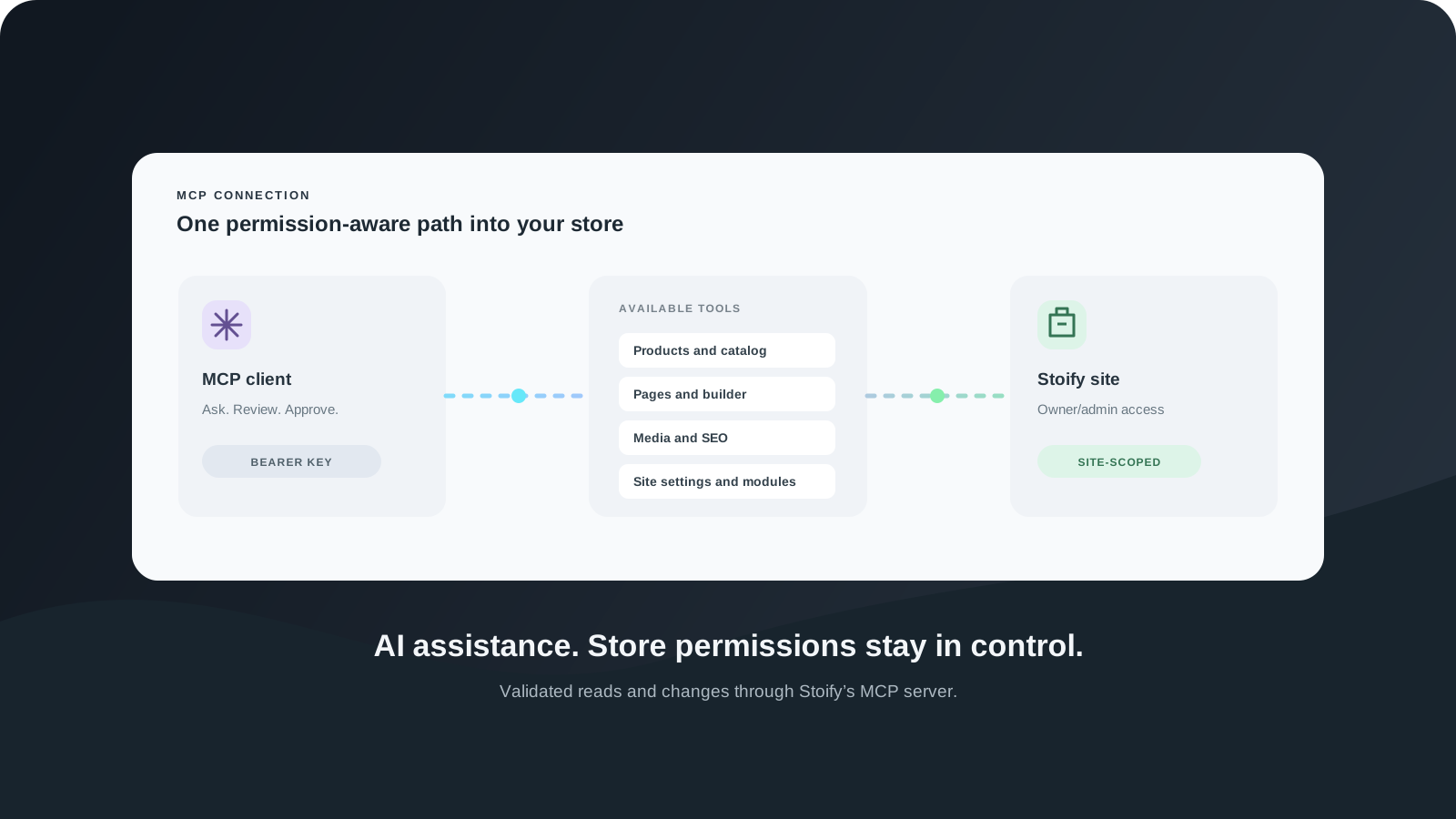
Stoify now includes a hosted Model Context Protocol server for AI clients and developer tools that support MCP. It exposes a growing set of tools for working with a Stoify store through the same site-scoped data and permission checks used by the dashboard.
The endpoint is https://stoify.app/api/mcp. Create an MCP connection from Dashboard → Settings → MCP, then add the endpoint and bearer key to your MCP client. The setup prompt in the dashboard can help configure the client you use.
Work across the store from one connection
The server can list sites available to the account and return the current storefront configuration for a selected site. Its tools cover:
- Products, variants, product media, categories, collections, and brands.
- Custom storefront pages and publication state.
- Home page, navigation, footer, theme, and template configuration.
- Site settings and optional module state.
- Media library assets and storefront builder media.
- SEO inventory, page details, and queued page audits.
- Supported builder defaults and capabilities.
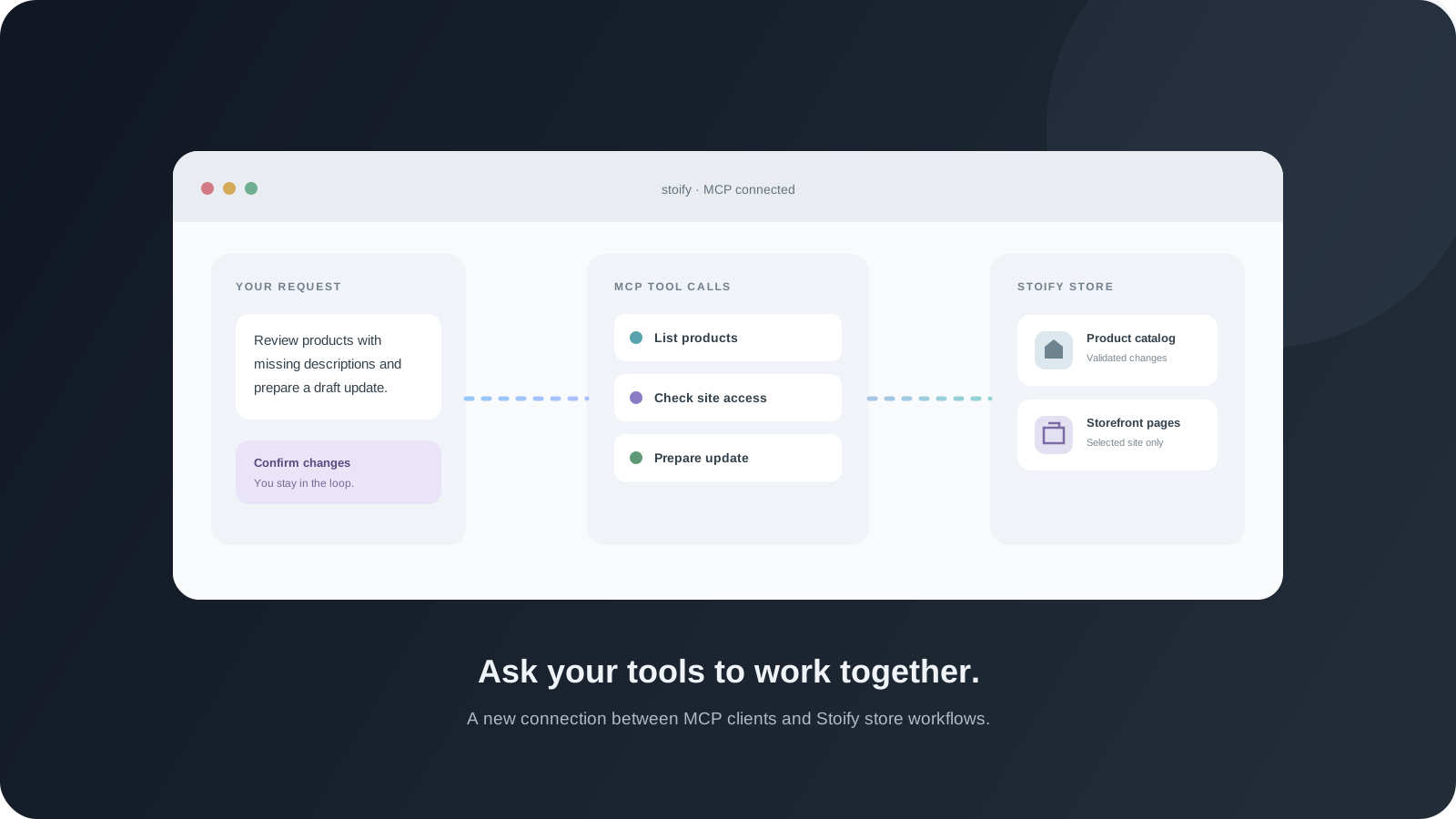
That lets an MCP client help with a concrete task such as reviewing a catalog, preparing a page update, or checking SEO readiness without pretending to understand tools that are not connected to the store.
Keep access scoped and reviewable
Each request uses an account-level bearer key. Site tools still require owner or admin access to the selected site, and the API Endpoints module must be enabled for that site. Site data is not selected through a user supplied URL; tools receive a site ID and check access before reading or changing its records.
Read tools identify themselves as read-only. Write and destructive tools declare their effects, validate their inputs, and follow the same site-scoped update rules as dashboard actions. Changes that use optimistic concurrency require the latest updatedAt value so a client can detect when someone else has edited the same settings.
The MCP key is shown only when it is created. Store it in the MCP client’s local configuration, and revoke or regenerate it from Settings → MCP if access needs to change. Disabling API Endpoints for a site also turns off MCP access to that site.
Connect in a few steps
- Open Dashboard → Settings → MCP.
- Generate an MCP key and copy it into the client configuration prompt.
- Ask the client to list accessible sites and select the site to work with.
- Review any requested changes and let the client apply them through the validated tools.
The connection is designed to keep the human in control of store changes. The MCP client proposes and performs actions through the server; Stoify continues to enforce the account’s permissions and site settings.
For a first look at the workflows this unlocks, read Introducing the Stoify MCP server. Existing public catalog integrations can still use Stoify’s catalog API directly.
Related reading
Deeper Stoify writing connected to this workflow.
More features
Explore the rest of the Stoify feature library.
Inventory
Multi-location inventory built for calmer operations
Track stock across locations without splitting your team across extra tools. Stoify keeps on-hand, reserved, and available inventory easier to understand from day one.
Catalog
Product management that stays fast as your catalog grows
Manage product details, variants, media, digital downloads, categories, collections, pricing, and visibility from one focused workflow.