
- Storefront experience
- Optional module
- Shipped
Custom forms and visual submission workflows
Build site-specific forms, publish them at a clean storefront URL, inspect every submission, and automate follow-up with a visual email workflow.
Shipped and available in Stoify
Share this page
Build the form around the workflow
Contact forms are useful, but businesses often need something more specific: a wholesale enquiry, a product consultation, a warranty request, an application, or a structured brief.
Stoify Forms keeps those workflows inside the same site-scoped dashboard as the storefront. Enable the optional module from Settings → Modules, then create a form with its own name, slug, success message, fields, and publication state.
Use practical fields without custom code
The field editor supports text, long text, email, password, number, telephone, URL, date, checkbox, and select inputs. Every field has a shopper-facing display name and a stable submit key for workflow templates.
Fields can be reordered by dragging, with keyboard drag controls, or with explicit up and down buttons. Required state, placeholders, help text, and select choices stay attached to the field as it moves.
Password fields are deliberately different: the value can be validated for the live request, but it is never saved to the submission record, displayed in the dashboard, or made available to an email template.
Publish a dedicated form or place it in a page
Published forms are available at /form/{slug} on the storefront. The same form can also be referenced by a Form section in the page builder, where the merchant can override the heading, intro, submit label, alignment, width, and success message.
Global theme controls keep form radius, shadow, border width, field spacing, and input treatment consistent with the rest of the storefront.
The storefront form uses accessible shadcn controls with React Hook Form and Zod validation, so required fields and field-specific values are checked before a response is sent.
See every response and workflow outcome
The Forms dashboard combines status cards with searchable, paginated tables. Open a form to see its responses, completion rate, and workflow failures, then open an individual submission for a field-by-field view.
The form editor also includes a dedicated Submissions tab for a faster review loop. Search, pagination, workflow status badges, deletion controls, and links to the full submission viewer stay available without leaving the form’s fields and workflow tabs.
Sensitive password values are always marked as not stored. Workflow errors are visible to the merchant without exposing provider details to the shopper.
Draw the follow-up path
Every workflow starts with a Start cap and finishes at an End cap. Add Email nodes between them, position nodes freely on the canvas, and connect or disconnect them with explicit arrow controls.
The workflow canvas is designed for hands-on editing: nodes snap to the grid, arrows and bend handles update while dragging, the blank canvas can be click-dragged to pan, and zoom controls keep larger graphs manageable. Keyboard shortcuts support zooming in, zooming out, and resetting the view without changing the saved workflow coordinates.
Email recipients can come from a form email field or a fixed address. Subjects and plain-text messages can safely reference submitted values with tokens such as {{email}} or {{first_name}}.
Stoify validates the graph before it is saved: cycles, broken edges, disconnected nodes, and paths that cannot reach the end are rejected.
For the launch story, read Introducing Stoify Forms and submission workflows.
Related reading
Read the Stoify writing connected to this shipped workflow.
- News
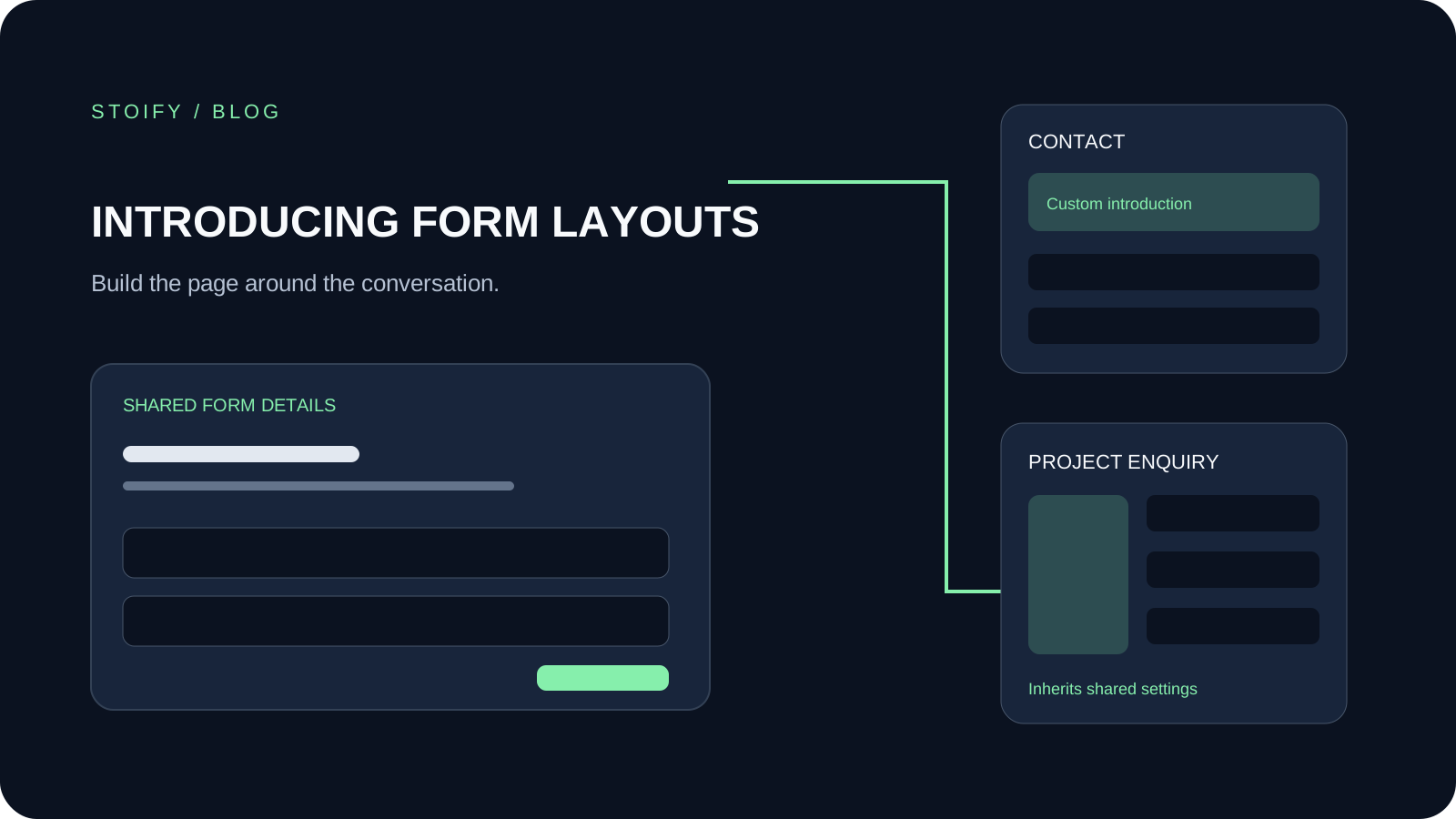
Introducing form page templates and overrides
Give standalone Stoify forms a shared storefront layout, with title controls, split layouts, and custom content for individual forms.
- News
- Education
Introducing Stoify Forms and submission workflows
Stoify now includes an optional Forms module for building storefront forms, reviewing submissions, and drawing visual email follow-up workflows.
Explore more shipped features
Your store address
Custom domains for your storefront
Connect a domain you own to your Stoify storefront, follow clear DNS instructions, and check connection status from your dashboard. Included on Pro and above.
Forms module
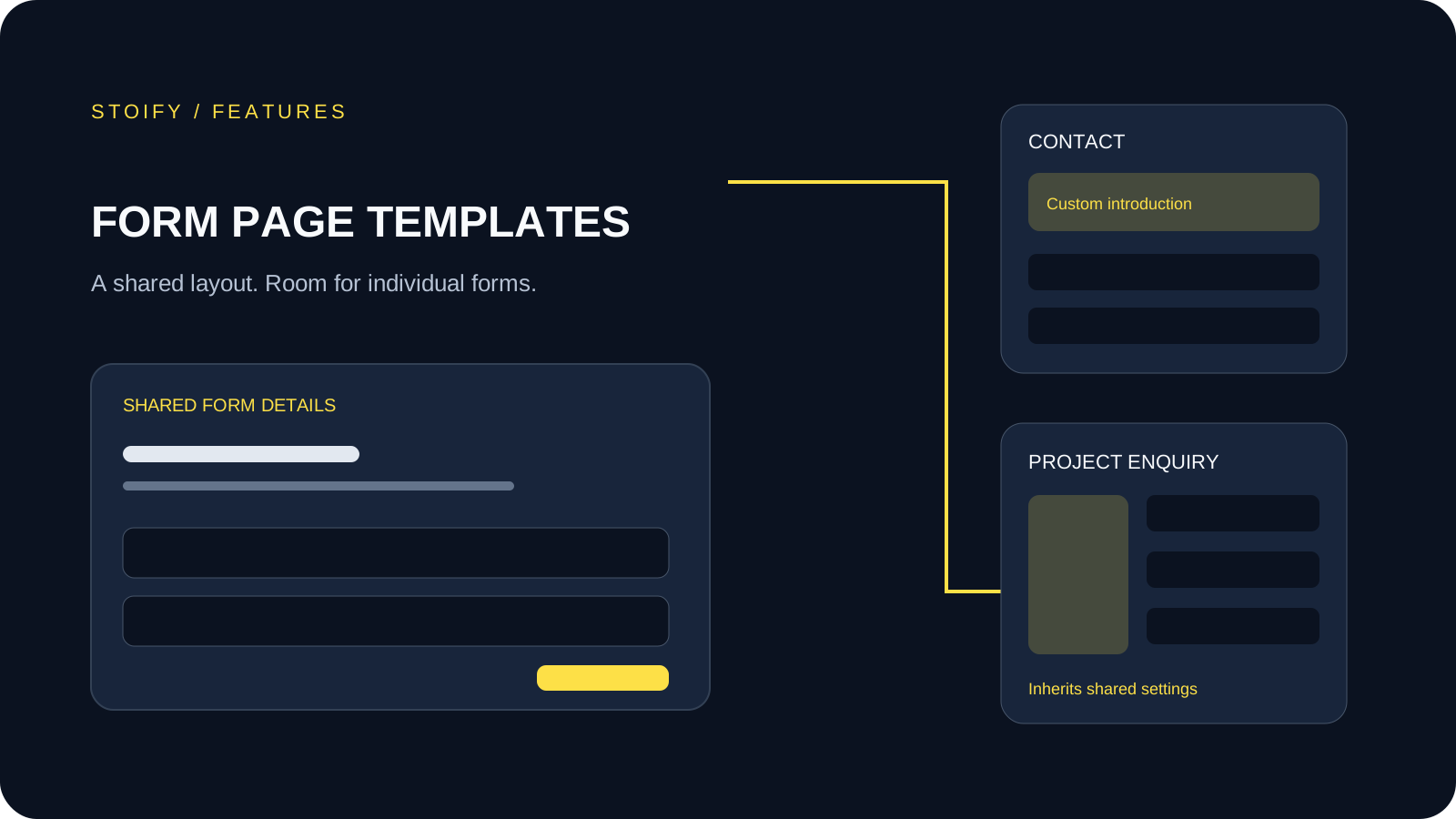
Form page templates and overrides
Design a shared layout for standalone storefront forms, then customize individual form pages with content sections and theme overrides.