
- Builder
- Asset management
- Shipped
A shared media library for every storefront asset
Manage images, video, audio, documents, archives, and custom fonts from one site-scoped media workspace, then reuse them anywhere in the builder.
Shipped and available in Stoify
Share this page
Keep the asset desk close to the storefront
The media library gives every site one place to find the files that shape its storefront. Search by filename, type, or font family, switch between dense tiles and a list, and open a large viewer when an asset needs a closer look.
Images, video, audio, PDFs, fonts, archives, and other supported files stay site-scoped and are backed by public Vercel Blob storage. Existing site assets are reconciled into the library on first use, and a manual rescan is always available when storage changes outside the dashboard. Custom media uploads count toward the active site's plan quota: Free includes 500 MB, Pro 5 GB, Business 25 GB, and Enterprise 100 GB.
The dashboard Usage page makes that capacity visible before an upload. Product images, product downloads, logos, event covers, and other dedicated asset workflows are tracked separately from custom media storage.
Reuse files without uploading duplicates
The shared media picker brings the same search, pagination, preview, and selection workflow into builder media fields, site logos, favicons, Open Graph images, and reusable image upload cards. Select one file or several, preserve each field's allowed types, and keep importing from a URL when a remote source is the right choice.
Make custom fonts part of the theme system
Upload WOFF2, WOFF, TTF, or OTF files with family, weight, and style metadata. The builder typography controls can use those fonts alongside Google fonts, while the storefront shell, page overrides, and builder preview generate the matching @font-face rules.
Delete with context
The library checks site settings, builder JSON, page and theme overrides, navigation, footer, products, variants, collections, events, digital files, and typography settings before deleting a file. Referenced assets show where they are used, so cleanup does not quietly break a storefront.
Read the launch announcement for the workflow details, or see how custom media storage limits work for plan and downgrade behavior.
Related reading
Read the Stoify writing connected to this shipped workflow.
- Product
- Guides
How Stoify custom media storage limits work
Understand what counts toward custom media storage, how plan quotas scale, and what happens when a site reaches its limit.
- News
- Product
Introducing the Stoify media library
A focused asset desk for finding, previewing, reusing, and safely cleaning up every file behind a storefront.
Explore more shipped features
Your store address
Custom domains for your storefront
Connect a domain you own to your Stoify storefront, follow clear DNS instructions, and check connection status from your dashboard. Included on Pro and above.
Forms module
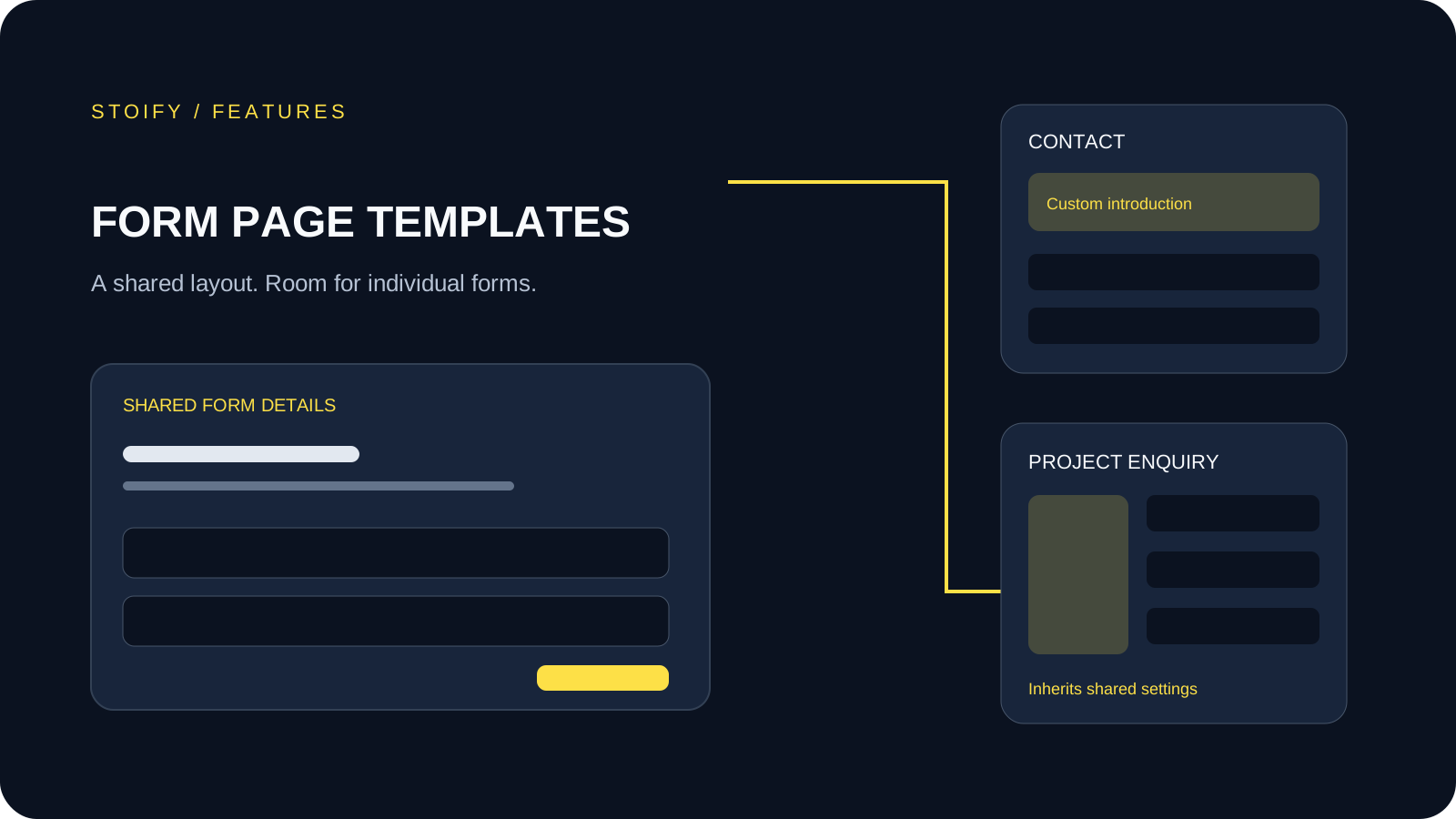
Form page templates and overrides
Design a shared layout for standalone storefront forms, then customize individual form pages with content sections and theme overrides.