
- Storefront & design
- Your store address
- Shipped
Custom domains for your storefront
Connect a domain you own to your Stoify storefront, follow clear DNS instructions, and check connection status from your dashboard. Included on Pro and above.
Shipped and available in Stoify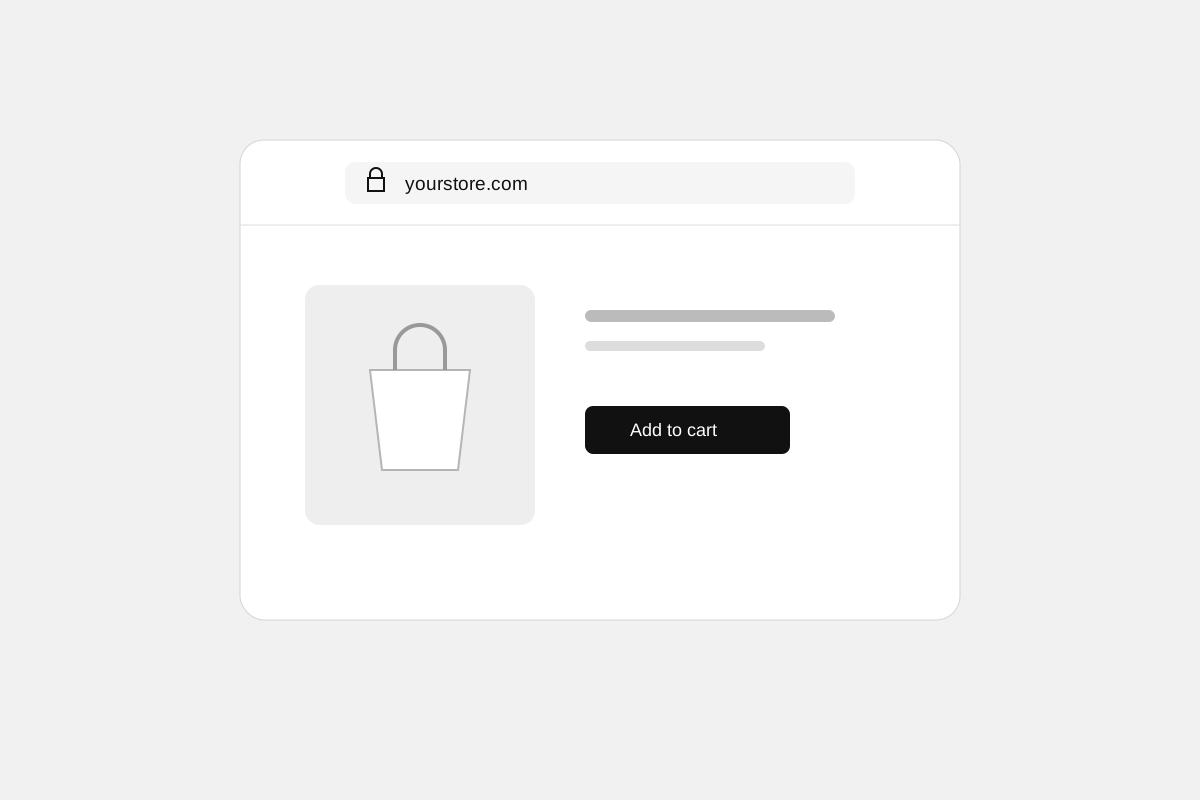
Share this page
Put your store at your own address
Connect a domain you already own, such as example.com or shop.example.com,
to the storefront you manage in Stoify. Products, collections, customer accounts,
and checkout stay part of the same store.
Custom domain connections are included on Pro, Business, and Enterprise. Domain registration and renewal are paid separately to your domain provider. Free stores keep their editable Stoify address.
Follow the records, then check the connection
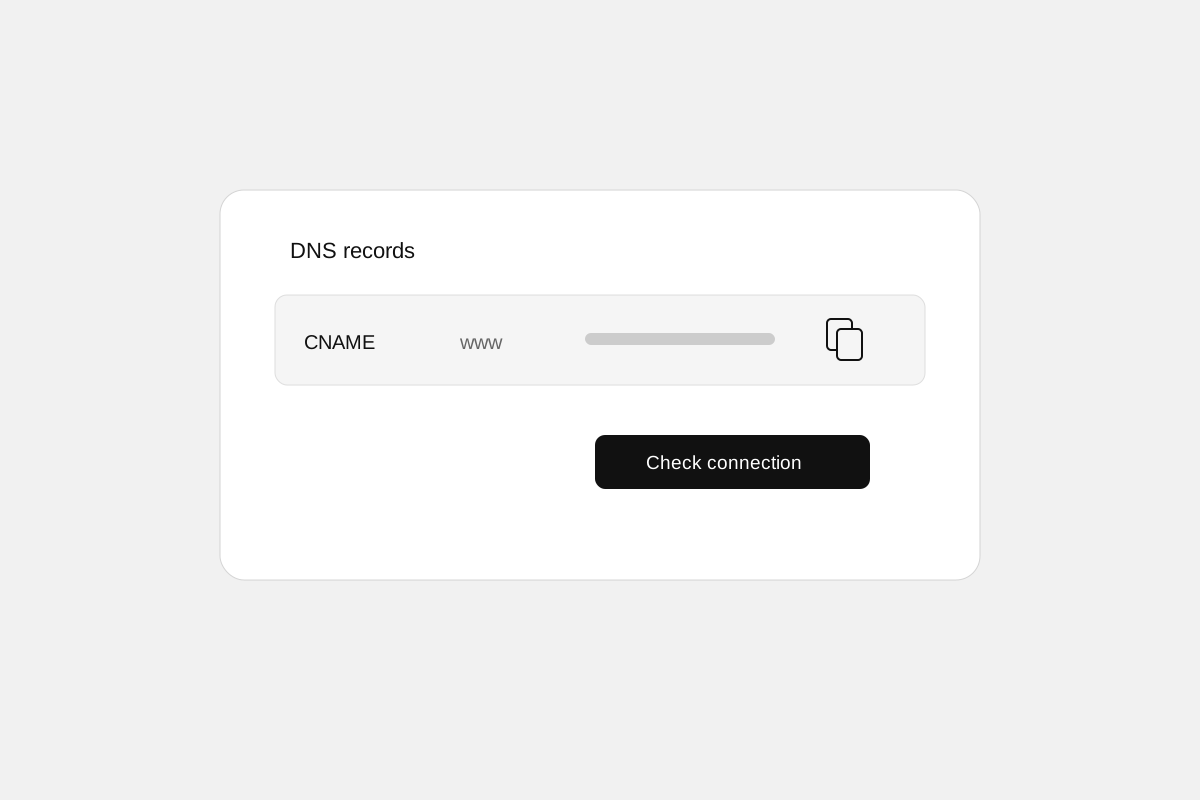
Open Settings → Domains, add your domain, and copy the displayed DNS records to your provider. The ownership record confirms that the domain belongs to you. Routing records point visitors to your storefront.
Use Check connection to start a fresh check. Stoify also retries while DNS changes propagate and confirms HTTPS before making the domain your default. Current instructions and status stay on the Domains page. Store owners also receive DNS setup instructions and connected/disconnected updates by email, with a private copy sent to Stoify administrators.
Keep a reliable alternative address
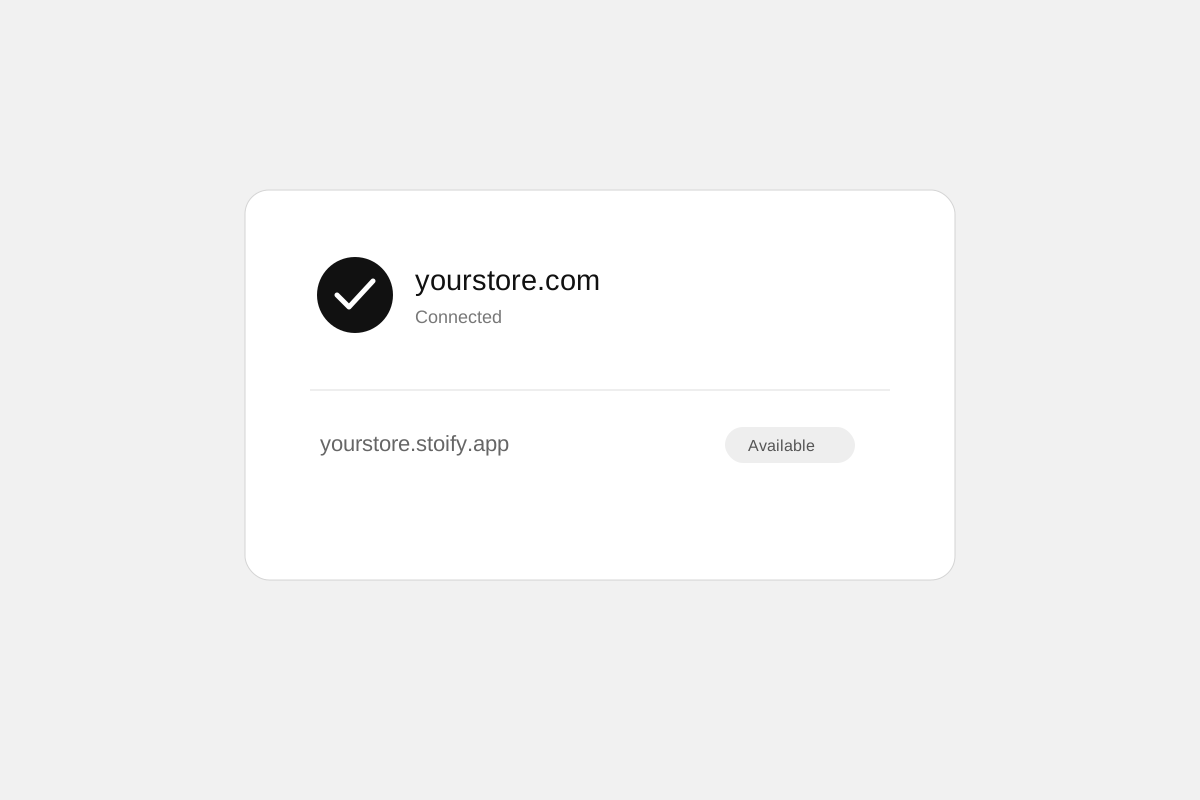
Your store.stoify.app address continues to work after connection. The active
custom domain becomes the default for generated store links and SEO URLs.
Existing customer emails link to that address while continuing to use Stoify’s
verified email sender.
For an apex or www address, connect the counterpart too so it can redirect to
your chosen primary hostname. A standalone subdomain connects on its own.
Change domains when your brand changes
Prepare a replacement without disconnecting your current domain. Stoify switches after the replacement is verified. You can disable or remove a connection from the same page. When paid plan access ends, the default returns to your Stoify address immediately; a scheduled cancellation retains access until the paid period ends.
Read the launch announcement, follow the connection guide, or compare Stoify plans.
Related reading
Read the Stoify writing connected to this shipped workflow.
- Education
How to connect your domain to a Stoify store
Connect an existing domain to Stoify: choose your primary hostname, add the displayed DNS records, verify HTTPS, and keep your Stoify address available.
- News
Introducing custom domains for Stoify storefronts
Give your store its own address with custom domains on Stoify Pro and above, dashboard DNS instructions, connection checks, and a working Stoify fallback.
Explore more shipped features
Forms module
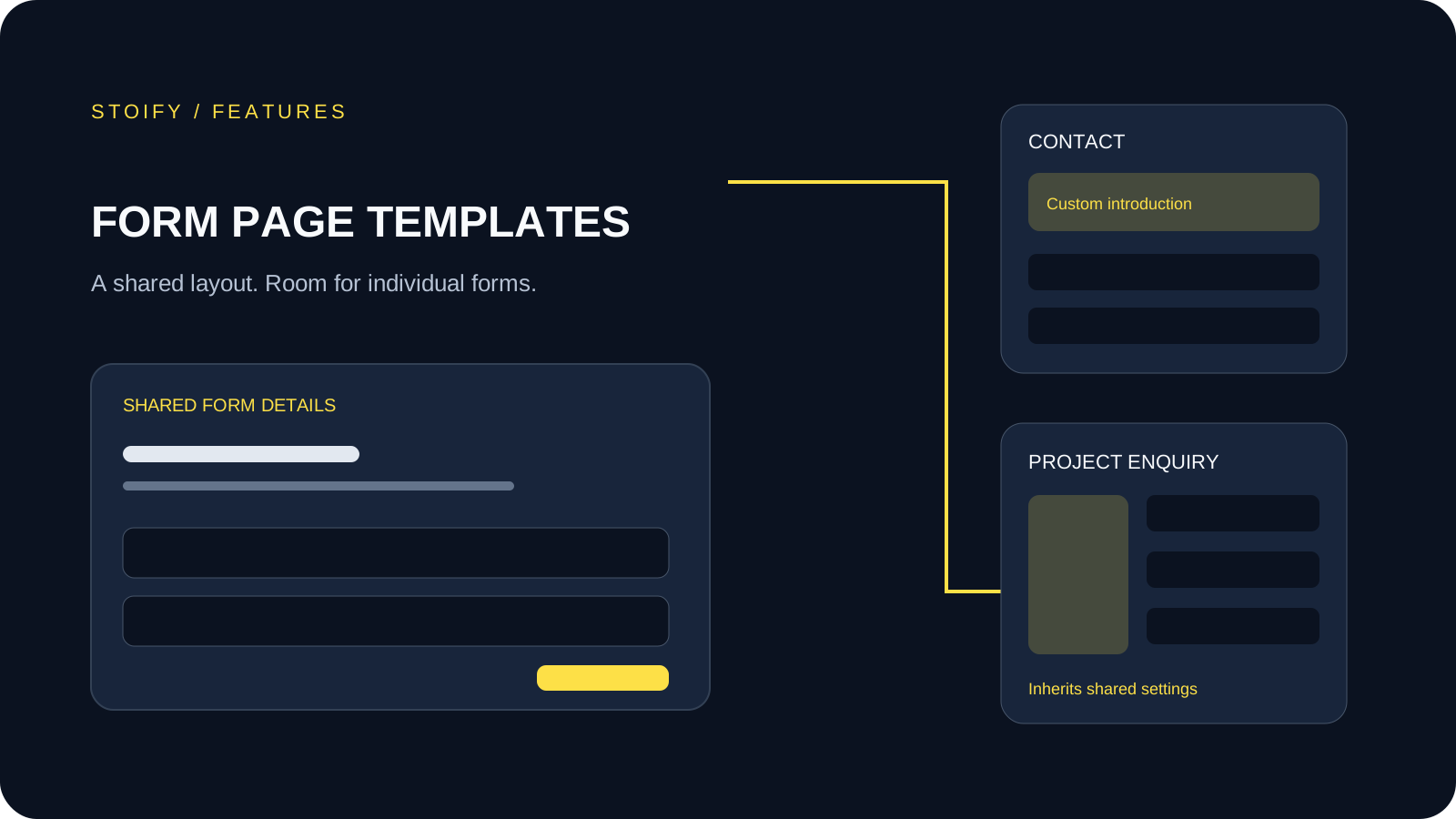
Form page templates and overrides
Design a shared layout for standalone storefront forms, then customize individual form pages with content sections and theme overrides.
Developer tools
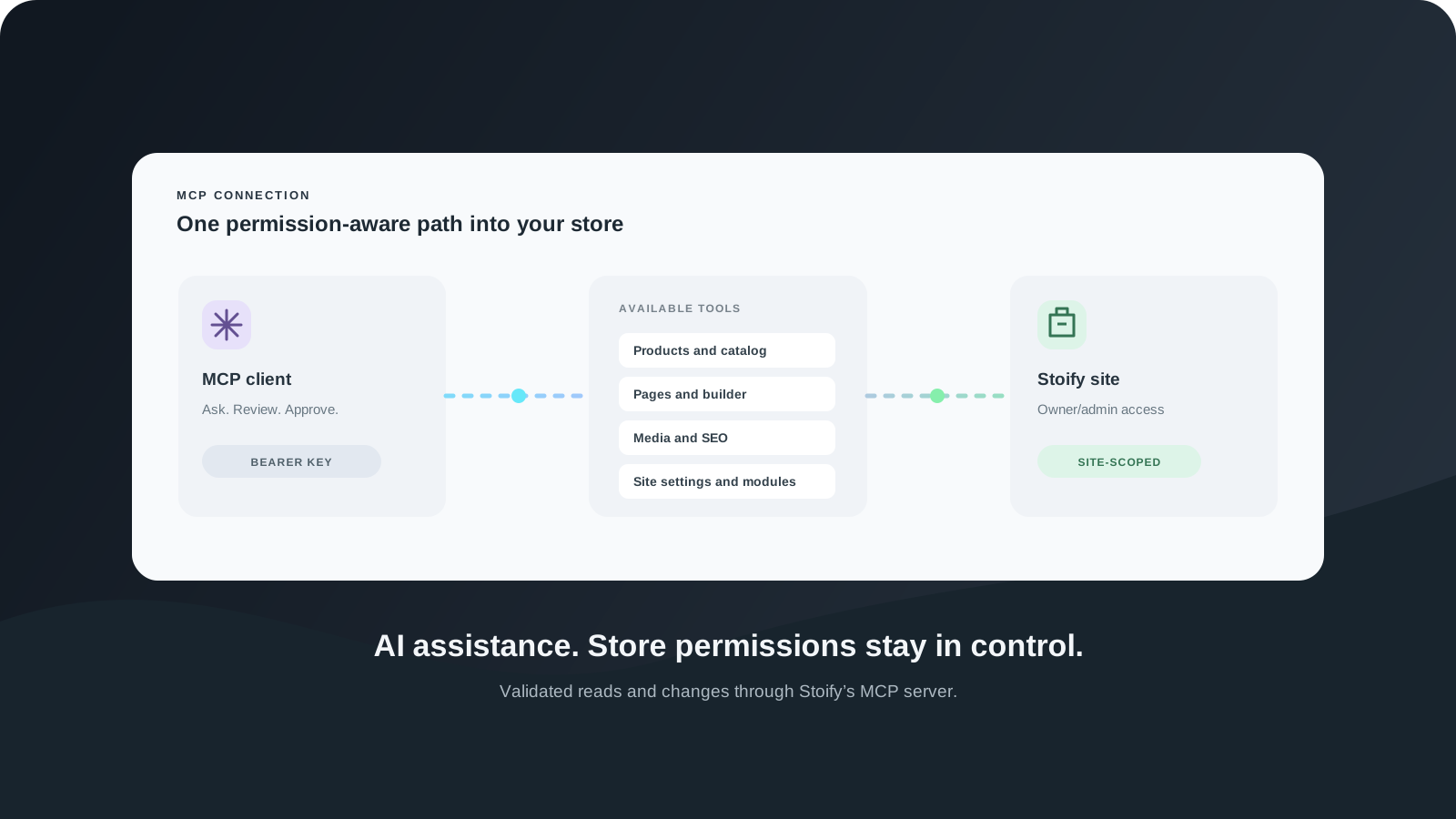
Stoify MCP server for AI-assisted store management
Connect an MCP client to read and manage Stoify sites through site-scoped tools for products, storefront pages, builder settings, modules, media, and SEO.